How to Create an Email with Your Domain: DNS Setup Guide
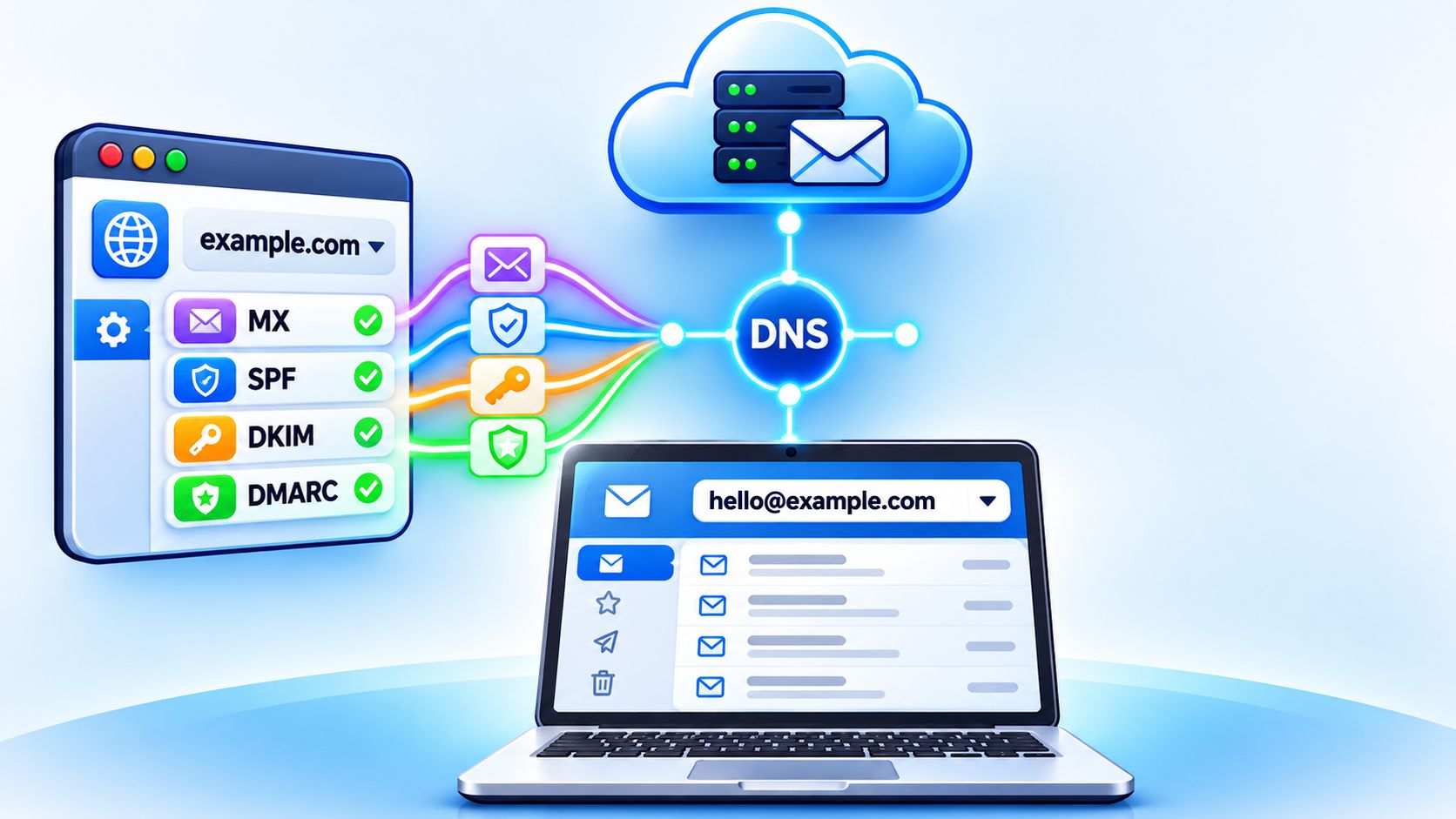
The mailbox exists. An agent has an address on acme.dev, it can compose a message, and the send call returns a 200. Then the first real reply lands in spam, or bounces, or vanishes because the MX record still points at the registrar's parking service from the day the domain was bought. Nothing in the application logs looks wrong.
Domain email isn't an application configuration problem. It's a DNS problem, and DNS has its own rules about which records may exist, how many copies you're allowed to publish, and which host name each one must sit under. Get the names and the order right and mail works on the first attempt. Type one name wrong, such as the full DKIM selector when the panel already appends the domain, and verification fails for hours while the key on screen looks perfectly valid.
This guide covers setting up a mailbox for an AI agent on a custom domain: the records to publish, the order to publish them in, the failure each one prevents, and how to prove with evidence that authentication passes before an agent sends at volume.
Table of Contents
- The DNS Records a Custom Domain Email Needs
- Choose a Mailbox Host Before You Touch DNS
- How to Point Your Domain at a Mail Host
- Authorizing Senders with a Single SPF Record
- Signing Outbound Mail with DKIM
- Moving DMARC from Monitoring to Enforcement
- Verify Authentication Before Your Agent Sends
The DNS Records a Custom Domain Email Needs
Six records decide whether a mailbox on acme.dev routes mail and whether receivers trust it. Many people publish them in the registrar's DNS panel. A mail host with a guided flow or Domain Connect support fills them in for you. Every step later in this guide points back to a row in the sheet below.
| Record type | Host name or zone | Value supplied by | What it controls |
|---|---|---|---|
| MX | @ (root of acme.dev) | Your mail host, with the priority it lists | Where inbound mail for the domain is delivered |
| TXT (SPF) | @ (root of acme.dev) | You, merged from every sender | Which servers may send mail for the domain |
| TXT (DKIM) | mail2026._domainkey.acme.dev | Your mail host, as selector mail2026 and a public key | Public key that verifies each message signature |
| TXT (DMARC) | _dmarc.acme.dev | You | Policy for failed checks and the address for aggregate reports |
| A | @ (root of acme.dev) | Your sending server provider | Forward DNS for a server you run yourself |
| PTR | Reverse zone for the sending IP, set by the IP owner | Your sending server provider | Reverse DNS that should match the A record |
What each record prevents
MX routes inbound mail. Without it, mail addressed to the agent has no destination and senders get a bounce or a silent drop. If a previous provider left MX entries behind, inbound mail splits between two systems and half the replies never reach the agent.
SPF authorizes infrastructure. A message sent from acme.dev by a server that isn't listed gets flagged, and receivers may reject it outright. The record is yours to write, because it has to cover every system that sends as the domain, not just the mailbox host.
DKIM proves the message wasn't altered. The host signs outbound mail with a private key and publishes the matching public key at the selector host name. No record, no signature to verify, and DMARC loses one of its two legs.
DMARC ties the two together. It tells receivers what to do when a message fails SPF and DKIM and where to send reports about those failures. Missing, it's the record that most often leaves a freshly configured domain failing checks weeks after launch.
A and PTR matter only if you run the sending server. Forward and reverse DNS must agree, and the PTR record lives in the reverse zone for the sending IP, which the IP owner sets, not in the forward zone at the registrar. Teams using a hosted mailbox can skip that row entirely.
Check before you leave the DNS panel: Write down every record the host asked for, then confirm each row appears with the exact host name and value it supplied. A missing row is a future bounce; a duplicated SPF record is a permanent SPF error.
Choose a Mailbox Host Before You Touch DNS
A record sheet is only as good as the host that supplies half its values. Decide what the address has to do before opening a DNS panel, because that choice determines which MX host, SPF include and DKIM selector you'll be copying.
| Option | What you get | What you still configure | Use it when |
|---|---|---|---|
| Domain mailbox host | Inbox plus outbound sending on acme.dev | DMARC policy and sender inventory | A person or agent must receive and send mail from the address |
| Sending-only API | Outbound sending from code | Inbox, reply handling and mailbox storage | Code sends notifications but nobody reads replies at that address |
| Self-hosted mail server | Full control of mailboxes and the sending IP | PTR, blocklist monitoring, patching and deliverability | You already run mail infrastructure and can own IP reputation |
| Agent mailbox | An address and inbox built for an AI agent | DMARC policy and sender inventory | The agent needs to read replies and send as itself |
A sending-only API is the wrong tool for an agent that gets replies. There's no inbox for the answer to land in, so the agent sends into a void and the conversation dies. An agent mailbox gives the agent its own address and threaded inbox, which is what makes a reply actionable.
Ask each candidate for five things in writing: the MX host and its priority, the SPF include string, the DKIM selector and public key, and its DMARC guidance. A host that can't produce those values isn't ready for a custom domain, regardless of how good its dashboard looks. Agents connecting through MCP, a CLI or a transactional sending API still need a real inbox behind the address. If the registrar and the mail host are different companies, setting up a custom email domain covers the account-level side while this guide handles the records.
Create the mailbox in the chosen host first. Then publish records against something that already exists.
How to Point Your Domain at a Mail Host
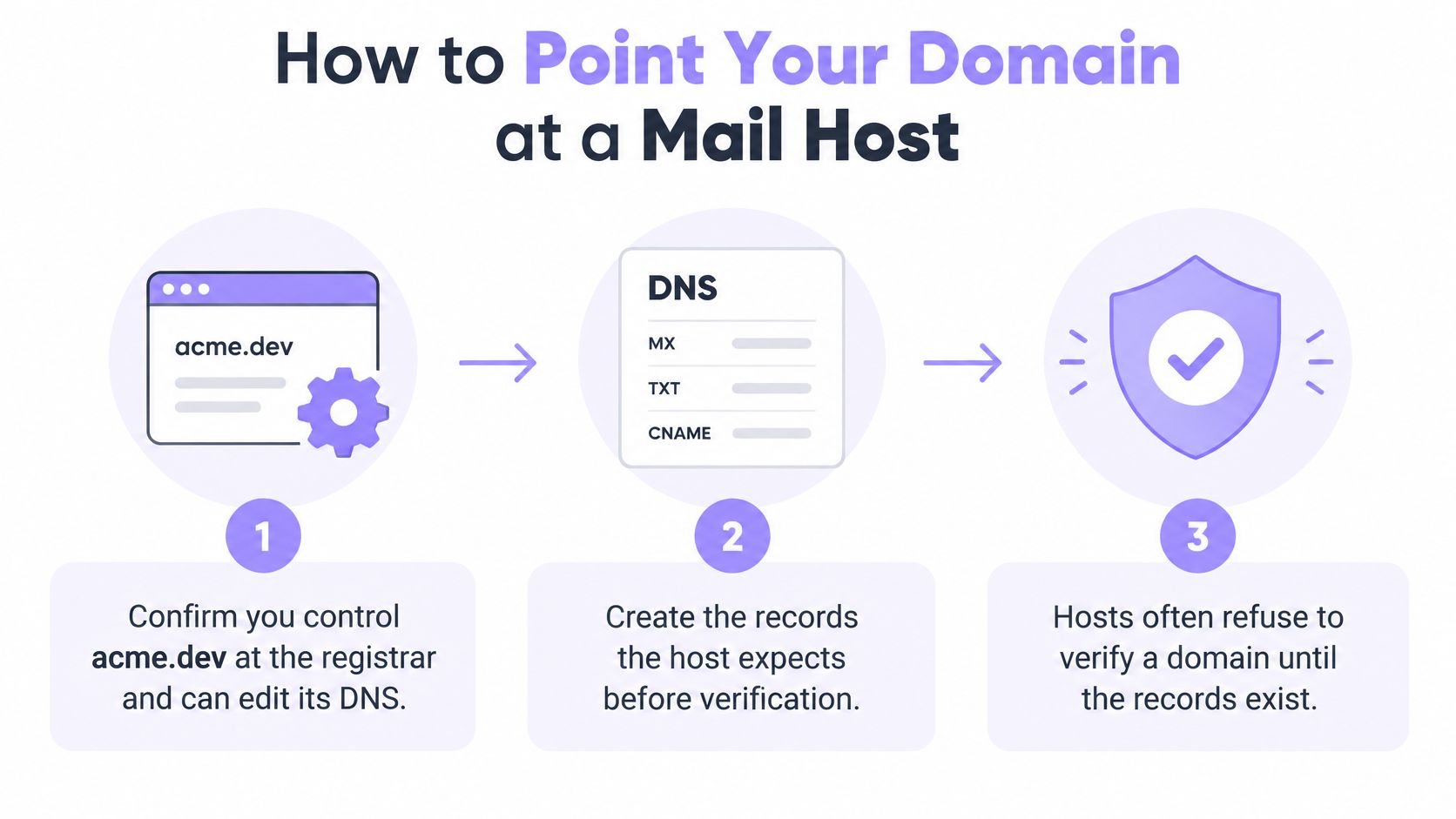
Work in the order the host expects. Most hosts refuse to verify a domain until the records already resolve, which is why publishing before verifying saves a support ticket.
- Confirm control of the domain. Log in to the registrar for acme.dev and find the DNS editor. If the domain was bought through a website builder, the editing panel may sit behind a "advanced DNS" toggle. Everything below happens in that panel.
- Create the mailbox or domain in the host. For an agent mailbox, Molted Email hosts the address and inbox without a separate Resend, Postmark or SES account. The host then generates the DKIM key pair and shows the selector and public key you need.
- Add the MX records at the root. Copy the host name and priority exactly as listed, and delete MX rows left by an old provider first. Two sets of MX records split inbound delivery between two systems.
- Add one SPF TXT record at the root. If a
v=spf1value already exists, merge the new include into it. Saving a second value that begins withv=spf1breaks SPF for every message the domain sends. - Add the DKIM TXT record at the selector name. Many panels append the domain automatically, so paste only the selector label and the key, not the full host name. This is the single most common failed verification.
- Add the DMARC TXT record at _dmarc. Start with a monitoring policy and a mailbox for reports. Publishing a restrictive policy before the sender inventory is complete blocks legitimate mail.
- Wait, then verify. Propagation depends on the TTL on the old records and often takes minutes to a few hours. Press verify in the host and confirm every record reads as verified rather than pending.
The root TXT duplication slip. Registrars let you save the same TXT value twice without complaint, and two SPF records for one domain name are an error, not a merge. Before publishing, delete the old row, then re-add the combined value as a single record.
Authorizing Senders with a Single SPF Record
An SPF record is a DNS TXT record listing which sending hosts may use the domain, and the rule that causes most SPF failures is quantity: one domain name, one record. The RFC 7208 specification states that multiple SPF records for the same owner name are not permitted, so existing values must be merged rather than added. Receivers evaluate that single record during the SMTP transaction to decide whether the sending host is authorized.
Say acme.dev already publishes v=spf1 include:_spf.google.com ~all for a human mailbox, and a new host needs its own include. Both mechanisms go into one record:
- Placeholder values, not real host names:
v=spf1 include:_spf.google.com include:spf.host.example ~all - One qualifier at the end, never one per include
- One TXT record at the root, and the old row deleted
The lookup limit is the second trap. Each include triggers further DNS lookups, and a long chain of vendors can push the record past ten lookups, which returns a permanent error rather than a soft failure. Run the record through an SPF lookup tool before publishing and count what each include pulls in.
Qualifiers are a dial, not decoration. Use ~all while the sender list is incomplete, so unexpected senders are marked but not rejected, and move to -all once every legitimate sender is listed. Forwarding breaks SPF because the forwarder's address isn't in the record, which is why DKIM and DMARC alignment have to carry the load too.
Write the sender inventory before editing the record. One line per system that sends as acme.dev: the human mailbox, the website contact form, the support desk, the marketing tool, the agent. Each line gets its include or IP. The inventory is the record's source of truth, and it's what makes a later DMARC report readable instead of alarming.
Signing Outbound Mail with DKIM
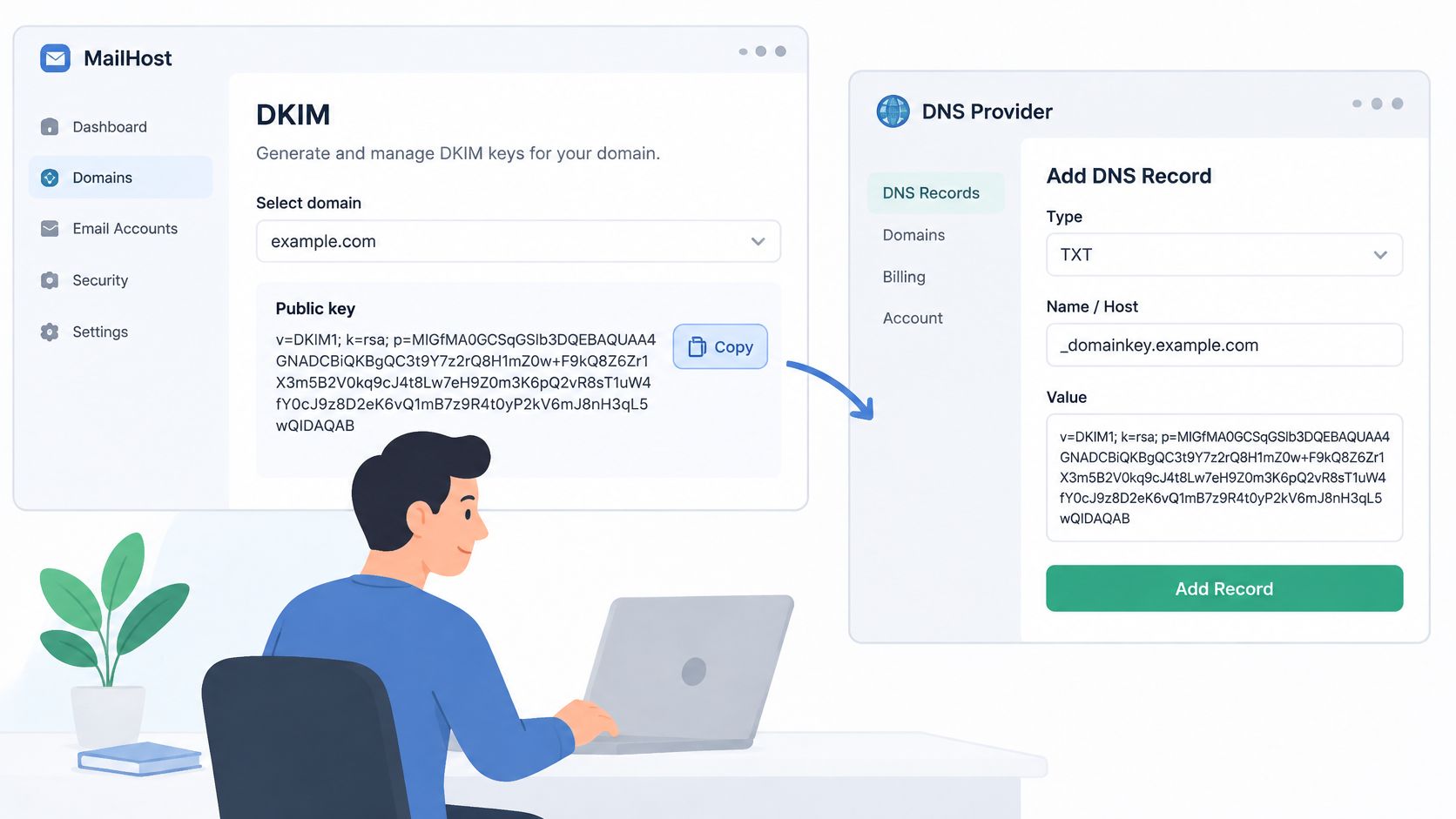
DKIM is mostly copying, and the copying is where it breaks. The host generates a key pair, signs each outbound message with the private half, and hands over a selector and a long public key. The reader publishes the public key as a TXT record at the selector host name. RFC 6376 defines the selector as s= and the signing domain as d= inside the DKIM-Signature header, and receivers use those two values to locate the key record in DNS.
A worked example with selector mail2026:
- Record type: TXT
- Host name:
mail2026._domainkey.acme.dev - Value: the public key string, copied with no line breaks, no wrapping quotes and no leading or trailing spaces
The record type matters too. Some panels default to a generic record and the value ends up published under the wrong type, which receivers ignore.
The paste mistake to check first. Many DNS panels append the domain to whatever you type in the host field. Type the full name and the record lands at mail2026._domainkey.acme.dev.acme.dev, which resolves to nothing and fails verification. Paste the label only, then confirm the resulting host name in the panel's record list.
Keep the key length the host generated. 2048-bit keys are common and some receivers treat shorter keys as weak. Don't edit the value to shorten it.
Use one selector per sending service. A support desk and a transactional sender can each have their own selector, so rotating one key doesn't touch the other. Rotation follows a fixed order: publish the new selector first, switch signing to it, send and check a few messages, then remove the old record. Deleting first and publishing second leaves a window of unsigned mail that fails DMARC.
Moving DMARC from Monitoring to Enforcement
DMARC compares the visible From domain against what SPF and DKIM authenticated. Neither protocol alone is enough. The RFC 7489 specification describes the mechanism: domain owners publish a policy in DNS, receiving systems fetch it during the SMTP session, and a message passes when at least one authenticated identifier aligns with the domain in the RFC 5322 From field. Alignment can be relaxed (the default) or strict, set with the adkim and aspf tags when a service's sending domain differs from the visible address.
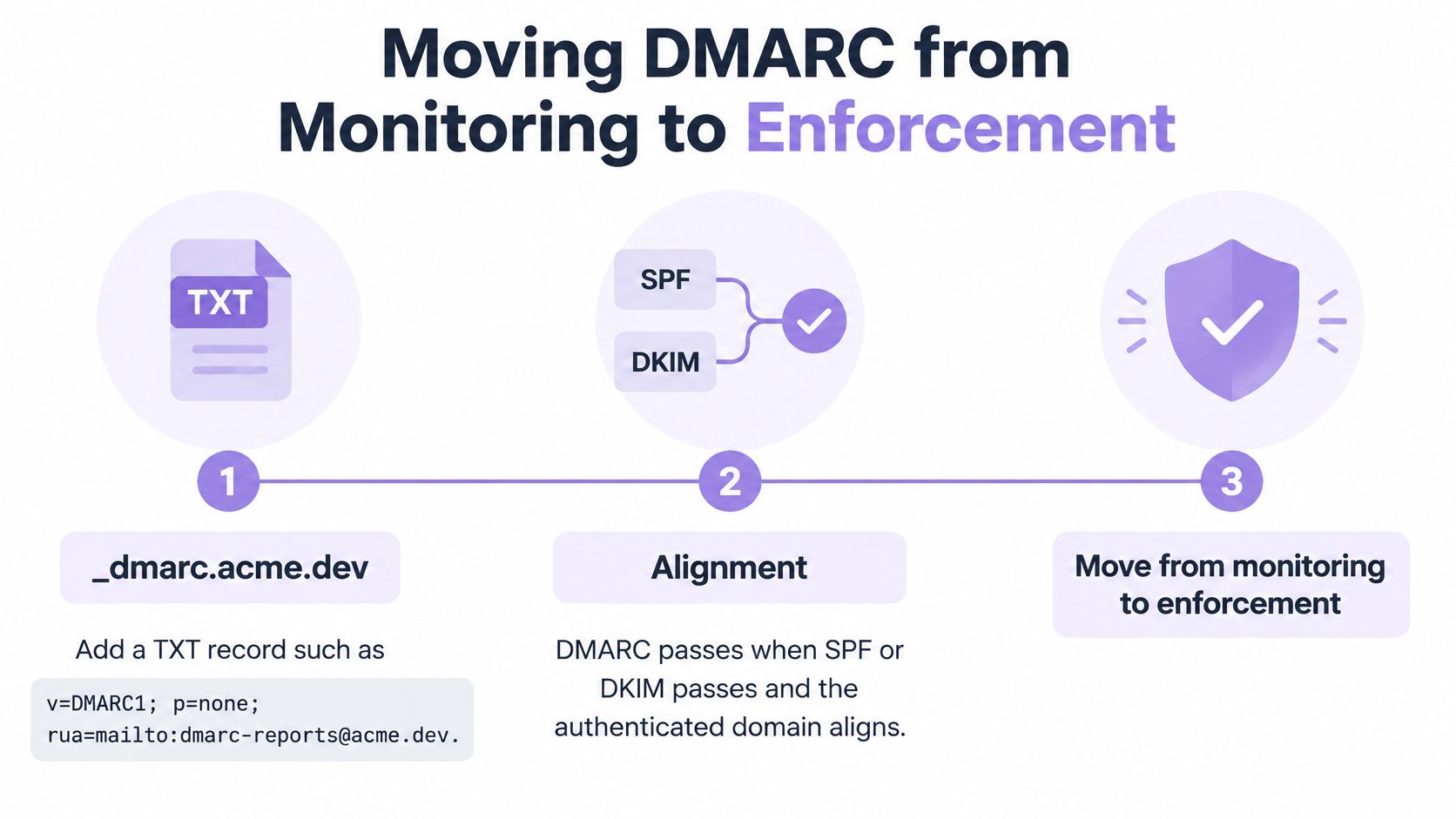
Start with a record at _dmarc.acme.dev such as v=DMARC1; p=none; rua=mailto:dmarc-reports@acme.dev. Aggregate reports arrive as XML, and each entry lists a sending source, how many messages it sent, and whether those messages passed. Read them against the sender inventory: a source you don't recognize is either a missing include or someone spoofing the domain, and the report's source address tells you which.
| Stage | Policy tag | Use it when | Move on when |
|---|---|---|---|
| Monitor | p=none | Records are new and senders are still being mapped | Every legitimate sender shows aligned passes for two to four weeks of reports |
| Quarantine | p=quarantine | Reports show only known sources failing | Failing mail is limited to a small, understood set of sources |
| Enforce | p=reject | Every legitimate sender aligns and forwarding is covered | Two or more report cycles show no legitimate failures |
Enforcement is the step that breaks things. p=reject blocks newsletters, help desks and forwarded mail that the inventory missed, and the senders never see a bounce that explains why. Staying at monitoring while a new sender is added is cheaper than recovering a broken transactional path.
Keep the reports flowing after enforcement. The deliverability guide for agent mailboxes treats this monitoring as part of normal operation rather than a launch task, which matches what the reports show: senders appear and disappear without warning.
Treat every unknown source as a finding. An unlisted sender in a DMARC report is a missing inventory line or an impersonation attempt, and both need action before the policy tightens.
Verify Authentication Before Your Agent Sends
Configuration isn't proof. Verification is sending mail and reading the headers. Run these checks in order before an agent sends anything beyond a test.
- Send one message to Gmail, Outlook and Yahoo. Three inbox providers cover most of the failure modes, and the test costs a minute.
- Open Show original in Gmail. Confirm
spf=pass,dkim=passanddmarc=pass, and check that the DKIMd=value matches the From domain. A pass with a mismatched signing domain still fails alignment. - Repeat for every sender on the inventory. The agent is one sender among several, and a marketing tool or a support desk can fail independently of the mailbox host.
- Track passing rates over time. Google Postmaster Tools reports the percentage of messages passing SPF, DKIM and DMARC alongside encryption and delivery-error rates, and it allows authentication reports to be examined across periods from today and yesterday up to custom windows of 180 days. That 180-day window is how a provider or DNS change gets caught after the fact.
- Start automated sending at low volume. A new domain has no reputation, and a burst of automated mail on day one is the fastest way to build a bad one.
- Pause when bounce or complaint rates rise. Stop the automation, fix the cause, then resume. Sending through the spike rarely recovers the domain.
- Check the domain against a record validator. Molted Email's domain checker reads SPF, DKIM and DMARC records and returns the exact record to publish for each problem it finds, which beats guessing at a malformed include.
Verification lists have a related blind spot: a checker that treats every role address as fake discards legitimate senders, the same false-negative shape that shows up in reverse when verifiers discard real corporate buyers. Judge a report by which senders it names, not by the pass percentage alone.
Then decide how much autonomy the agent gets. Running on its own and waiting for approval are both valid, and the choice sits on top of authentication rather than in place of it. A Molted Email account starts without a plan and can't send until the owner picks the Free plan or a paid one, which is a useful gate: the same momentum that gets records published quickly also gets an agent sending before its authentication is verified. The checklist is short. Records published, test messages passing, reports reviewed, and only then volume.
Molted Email gives an AI agent its own address and inbox on a verified custom domain, with sending, receiving and delivery handled in one place instead of across a separate provider account. Inbound mail is screened for prompt-injection attempts and risky messages are quarantined, outbound mail is checked against mailbox policy before it goes, and a person can take over any thread the agent shouldn't handle. Start free at Molted Email (free for people, paid plans from $19 a month).